How to open a CSV in Google Sheets
There are two reliable ways. The manual flow works for occasional files. The Chrome extension makes sense if you open CSVs more than once a week.
Manual way to import CSV into Google Sheets
- Open Google Drive in your browser.
- Click New → File upload and select your CSV.
- Wait for the upload to complete.
- Right-click the CSV file in Drive and choose Open with → Google Sheets.
- A new Google Sheet is created from the CSV in your Drive.
Alternative: open a Sheet first, then use File → Import → Upload, drop the CSV, and choose how to insert it.
Faster way using the Chrome extension
CSV to Sheets reduces the workflow to two clicks. Install the extension, click the toolbar icon, and pick the CSV.
Install the Chrome extension
Add CSV to Google Sheets from the Chrome Web Store. Works in Chrome, Edge, Brave, and Arc.
Open the popup and pick a CSV
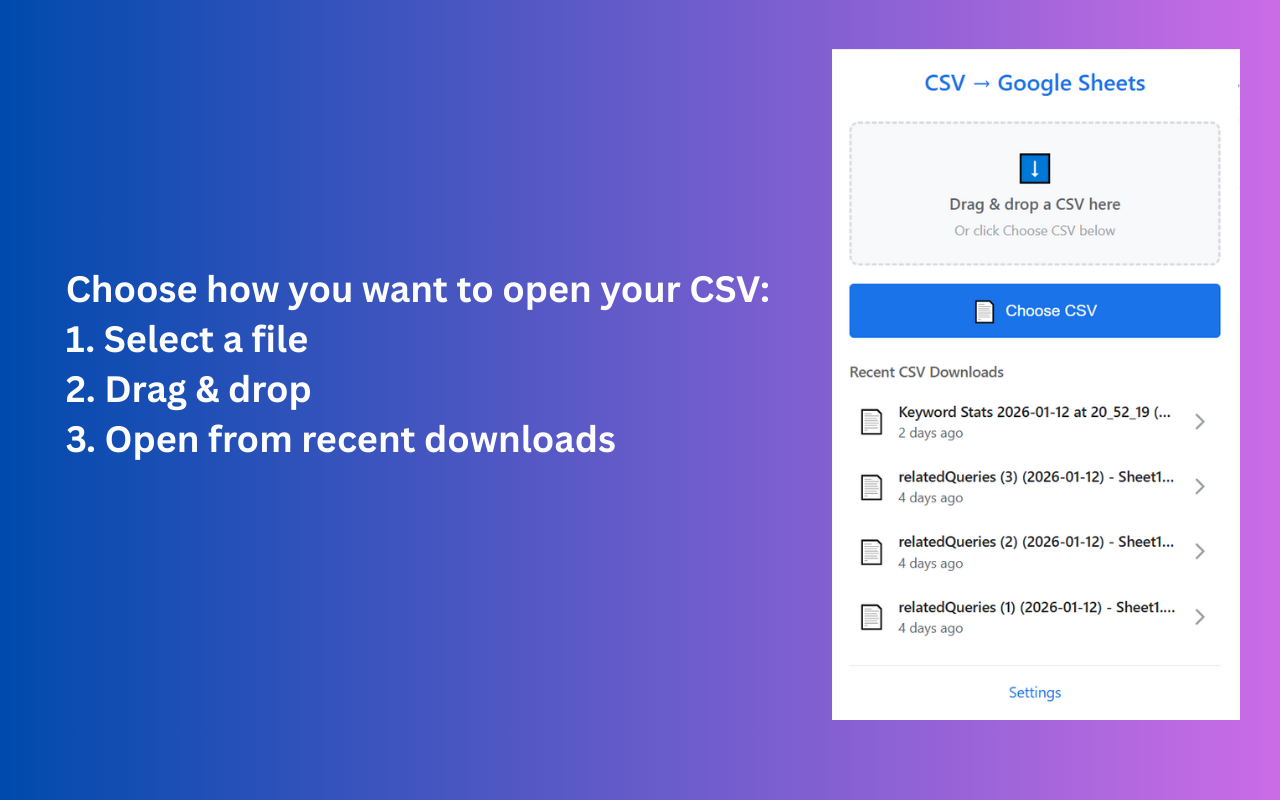
Drag a file in, click Choose CSV, or pick a recent download.
Edit in Google Sheets
A real Google Sheet opens in a new tab, already in your Drive.
When to use each method
- Occasional, one-off file: the manual flow is fine.
- Weekly or daily exports: the extension removes the upload and import dialog entirely.
- Files received from teammates: open from recent downloads in one click.
Common CSV issues (and quick fixes)
Some files use semicolons or tabs. Sheets usually auto-detects; override in the import dialog if columns merge.
If you see ? or �, re-export the CSV as UTF-8 from the source tool.
Sheets supports 10M cells per Sheet. Split or filter very large CSVs first.
Dates from some platforms come in as text. Convert the column to Date format before sorting.
Format the destination column as plain text before importing to keep zip codes and SKUs intact.
Fields with commas should be wrapped in double quotes in the source CSV. Re-export if columns get split.
What actually happens when you click
The extension is deliberately small — the whole flow runs in your browser and talks to the Google Sheets API directly. Here is the end-to-end sequence.
- You click the toolbar icon and the popup lists your recent CSV downloads plus a drop zone for local files.
- You pick a CSV. The file is read locally in your browser — no upload to a third-party server.
- The extension calls the Google Sheets API (using the OAuth scope you granted at install) to create a new spreadsheet in your Drive.
- The CSV rows are streamed into the new sheet with the columns already recognized.
- A new browser tab opens on the finished Google Sheet, ready to edit.
Why it is faster than the manual flow
Skip navigating to drive.google.com, clicking New, and waiting for the upload progress bar.
Skip finding the uploaded file in Drive and using Open with → Google Sheets.
Skip the separator-type and text-conversion dialog for typical CSVs.
Your last few CSVs are one click away in the popup — no file browser needed.
Who uses CSV to Sheets
- Marketers opening weekly Google Ads, Meta Ads, and GA4 exports for campaign reports.
- Ecommerce operators reviewing daily Shopify or WooCommerce order exports.
- Finance and admin teams reconciling bank statements and Stripe payouts every month.
- Sales teams pulling CRM deal exports into a pipeline dashboard.
- Analysts opening ad-hoc CSVs from partners without cluttering Drive with uploads.
- Founders checking billing, ads, and product tool exports without leaving Chrome.
Privacy and security model
- Runs locally. The CSV file is parsed in your browser and sent straight to the Google Sheets API — it never touches a third-party server.
- Minimum OAuth scope. The extension asks only for permission to create new Google Sheets on your behalf, not to read or modify your existing Drive files.
- No tracking or analytics. The extension does not collect usage data or send telemetry.
- Revocable at any time. You can disconnect Google access from the extension settings panel or from your Google Account permissions page.
- Open Chrome Web Store listing. Distributed through the standard Chrome Web Store review process, with published permissions.
Related guides
Try it on your next CSV
Install the extension and the next CSV you download opens in Google Sheets in one click.