Open CSV files in Google Sheets instantly
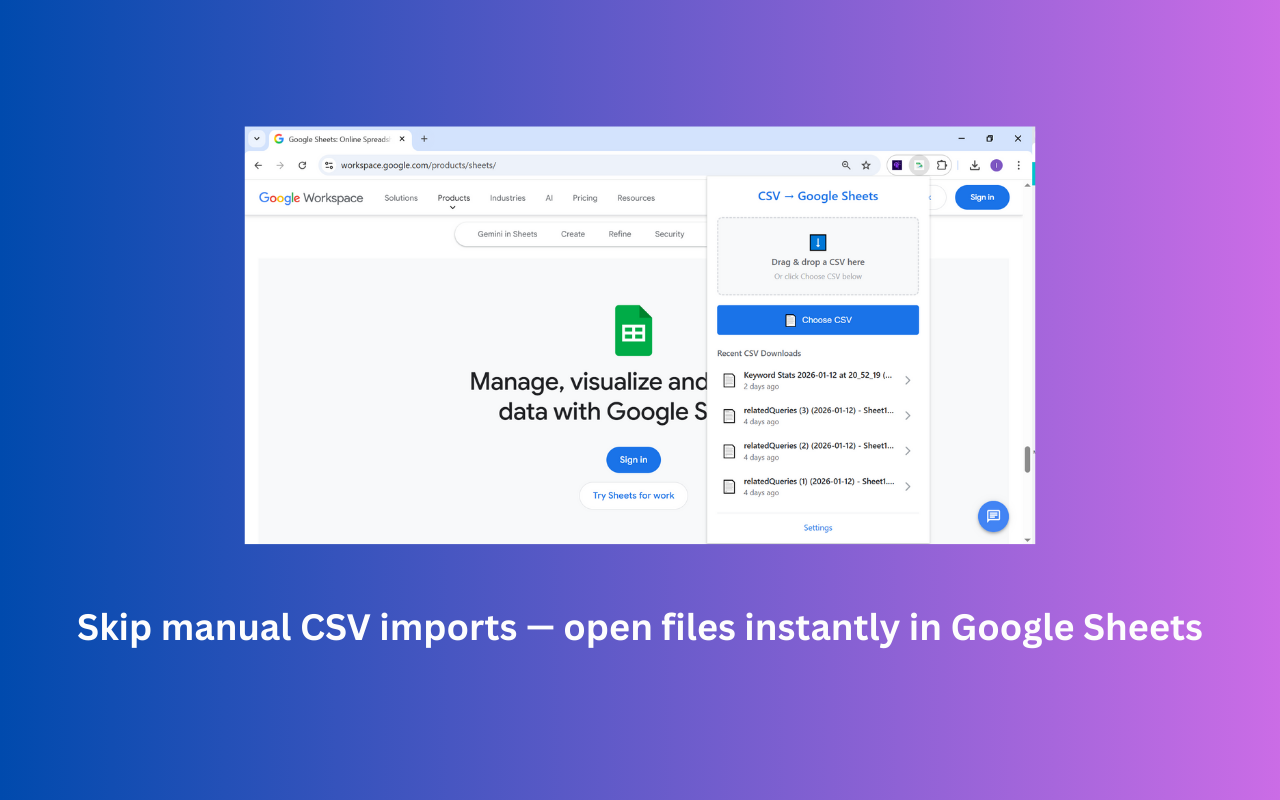
Skip the manual upload and import flow. Select a CSV file and create a real Google Sheet in your Google Drive in just a couple of clicks.
Lightweight Chrome extension · Built for CSV-heavy workflows · No tracking
Importing CSV files into Google Sheets shouldn't take a minute every time
CSV files are everywhere — ad exports, analytics reports, bank statements, order lists, CRM exports. Google Sheets is where people actually want to inspect and edit them.
But the default workflow adds repetitive steps every time: download the CSV, open Google Drive, click upload, wait, right-click the file, choose Open with Google Sheets, then close the original tab. Multiply that by the number of CSVs you open per week and it stops being trivial.
CSV to Google Sheets removes that friction. Pick a file from the popup — or drop it in — and you're already looking at the Sheet.
Built for people who open CSVs all day
Open CSV files in 1–2 clicks
Pick a file in the popup and the Google Sheet opens in a new tab.
Skip manual upload/import steps
No more Drive upload dialog, right-click menu, or import settings screen.
Works with local CSV files
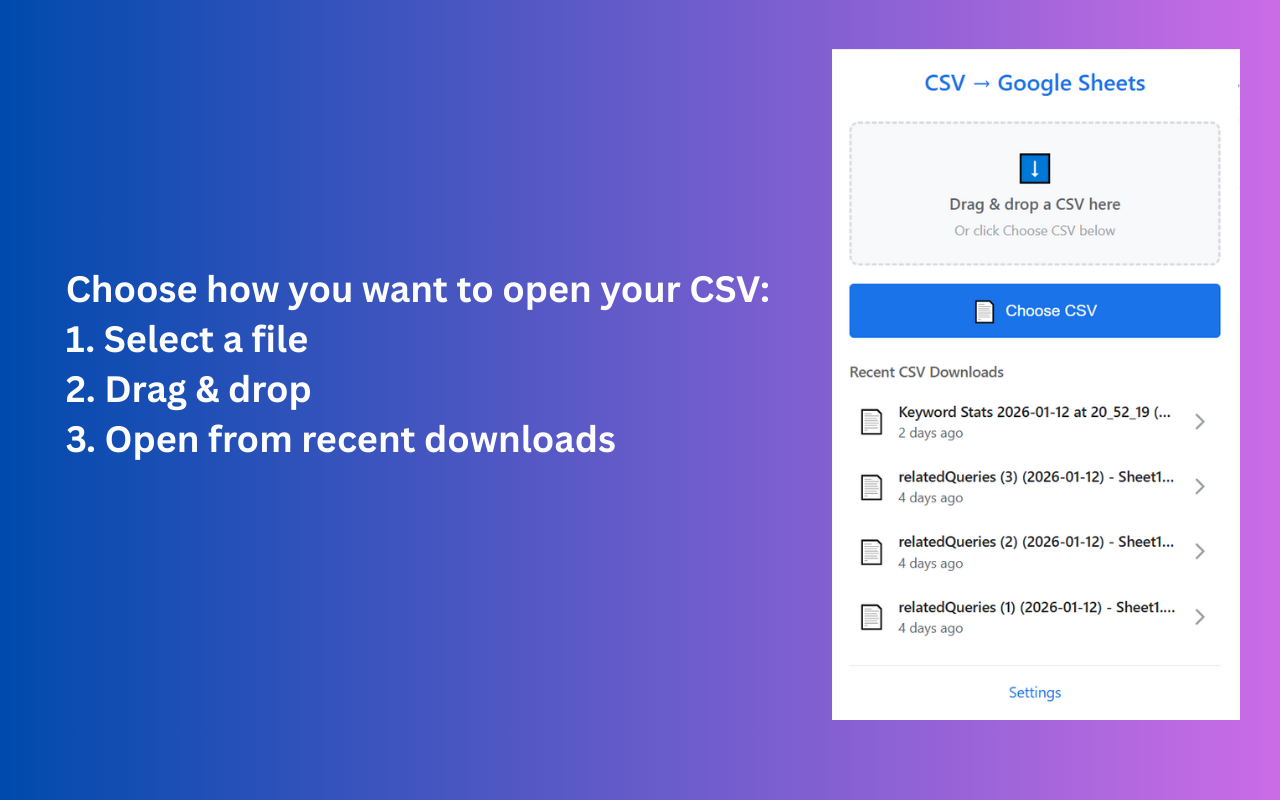
Drag and drop or use Choose CSV to open any local file.
Works with recent downloads
Recently downloaded CSVs appear right inside the popup.
Creates a real Google Sheet
Not a preview — a real Sheet in your Google Drive, ready to edit and share.
Lightweight Chrome extension
Small bundle, fast popup, no background bloat.
No tracking or data collection
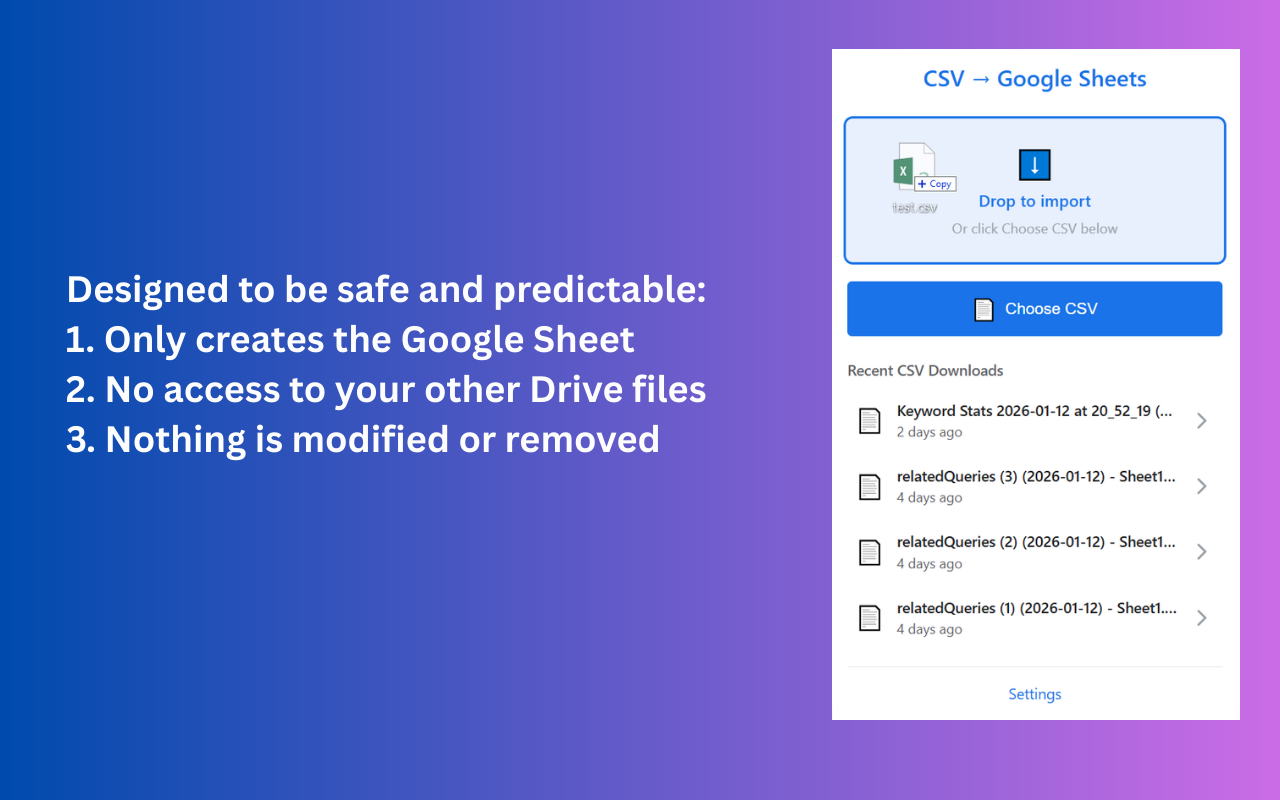
Designed to run locally in your browser.
Disconnect Google access anytime
One click in settings revokes access. Reconnect whenever you want.
See time saved
The settings panel tracks how much time you've avoided on manual imports.
CSV-heavy roles that live in Google Sheets
Marketers
Exporting weekly ad and analytics reports.
Founders
Checking metrics from billing, ads, and product tools.
Operations teams
Handling CSVs from partners and internal systems.
Analysts
Opening ad and platform exports for ad-hoc analysis.
E-commerce teams
Reviewing orders, fulfillment, and inventory CSVs.
Finance & admin
Checking bank statements and payment provider exports.
Three steps, then you're done forever
Install the Chrome extension
Add CSV to Google Sheets from the Chrome Web Store. It works in Chrome, Edge, Brave, and Arc.
Choose a CSV file or recent download
Drag and drop, click Choose CSV, or pick a file from your recent downloads — all from the popup.
Open it directly as a Google Sheet
The extension creates a real Google Sheet in your Drive and opens it in a new tab.
Manual import vs. CSV to Sheets
| Manual Google Sheets import | CSV to Sheets extension | |
|---|---|---|
| Number of steps | 6+ | 1–2 |
| Works from recent downloads | ||
| Creates a real Google Sheet | ||
| Good for frequent CSV files | ||
| Time spent repeating setup | Every file | None |
| Best for quick viewing/editing |
The fastest way to turn a CSV file into a Google Sheet
Most people end up opening CSV files in Google Sheets several times a week. Ad platforms export campaign data as CSV. Analytics tools export funnels as CSV. Banks and payment processors export statements as CSV. CRMs export contact lists as CSV. The fastest way to actually work with that data is to view it as a real Google Sheet, where you can filter, pivot, and reference it from formulas.
The built-in path from CSV to Google Sheets is functional but slow. You upload the file to Google Drive, wait for it to finish, right-click the file, choose Open with → Google Sheets, then close the original CSV tab. A separate path is File → Import inside an existing Sheet, which adds an import dialog with separator and conversion options. Either flow takes 30 to 60 seconds per file, every time.
CSV to Sheets is a Chrome extension that compresses this into one step. Click the toolbar icon and the popup shows your recent CSV downloads at the top. Pick one — or drag a local CSV in — and a real Google Sheet is created in your Google Drive. There's no upload dialog and no import settings screen to click through, because the file is sent straight to the Google Sheets API.
Importantly, the extension only creates the new Google Sheet. It doesn't read or modify your other Drive files, and it doesn't collect tracking data. You can disconnect Google access at any time from the settings panel and reconnect later. The result is a setup that does one thing well: open CSV files in Google Sheets, instantly.
Start with the most-read CSV to Google Sheets articles
- Complete manual guide to importing CSV into Google SheetsEvery screen, every setting, every fix — the definitive walkthrough of the built-in importer.
- Automate recurring CSV imports to Google SheetsScheduled triggers, incremental loads, email pipelines, and webhooks for hands-off imports.
- Import CSV without formatting errorsFix leading zeros, garbled UTF-8, date locale flips, and scientific notation.
- How to open a CSV file in Google SheetsManual and one-click methods compared, with the common gotchas.
- Build a sales dashboard from a CRM CSV exportTurn a HubSpot, Pipedrive, or Salesforce export into a weekly-refresh dashboard.
- CSV to Google Sheets for marketing reportsWeekly workflow for Google Ads, Meta, GA4, and LinkedIn CSV exports.
Latest CSV and Google Sheets guides
How to Open a CSV File in Google Sheets
Open a CSV from your computer or Google Drive as an editable Google Sheet, or choose a recent download in the extension. Follow each route and verify the result.
How to Import CSV into Google Sheets: New or Existing Sheets
Import a local CSV into a new spreadsheet or an existing tab, choose safe destination and conversion settings, and check the result against your original export.
Convert CSV to Google Sheets: Create an Editable Spreadsheet
Create an editable Google Sheet from a local CSV or recent download, or use manual import when you need control over the destination and data conversion.
How to Open Downloaded CSV Files in Google Sheets Faster
Most CSVs land in your Downloads folder. Here's how to skip the Drive upload step and open them in Google Sheets directly from your recent downloads.
CSV to Google Sheets for Marketing Reports
Marketing teams export CSVs all day — from Google Ads, Meta, GA4, LinkedIn, and more. Here's a workflow that turns them into Google Sheets without the import dance.
How to Import CSV into Google Sheets Without Losing Formatting
A symptom-by-symptom guide to preserving leading zeros, dates, special characters, delimiters, decimal values, and long IDs when importing CSV files into Google Sheets.
Stop manually importing CSV files
Install the Chrome extension and turn any CSV into a Google Sheet in one click.